Please let us know if you have any questions or constructive comments through our support mailbox: support@sgadancreek.com
Searching Nearby Stops
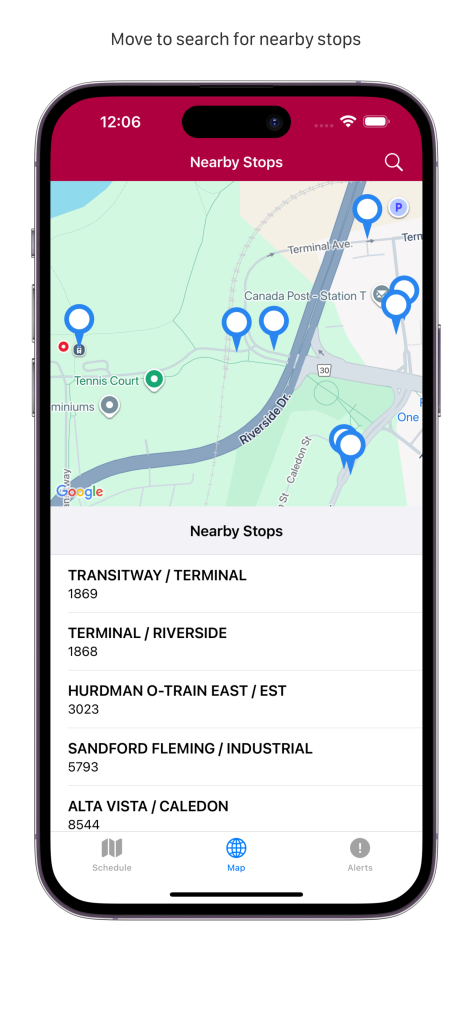
Initial nearby stop search is done by using your current location. If location service is not enabled, a default location is used for your city. To search stop in different location, move the map around, tap the search button on left side of the title bar.
Select a stop to display upcoming trips for the selected stop.
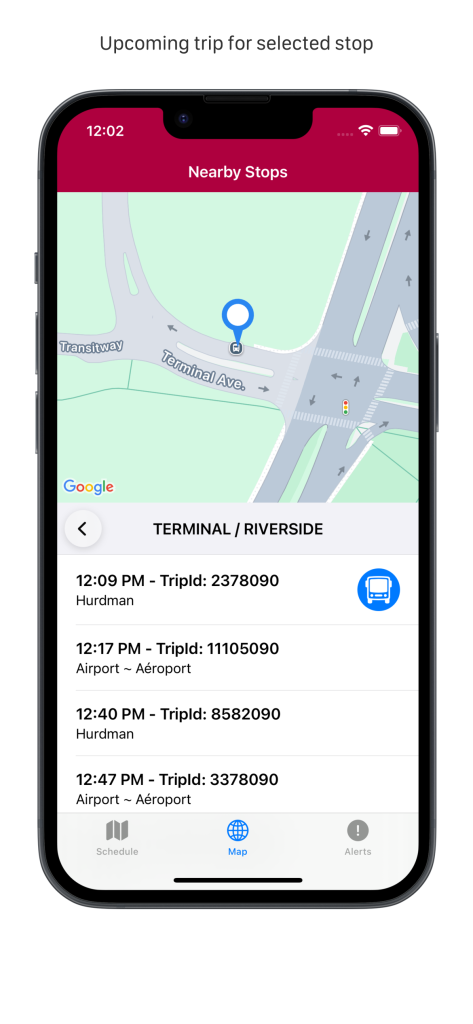
When a stop is selected; map will zoom to the stop. On this screen, you can move back to the Nearby Stops screen by tapping the back button.
If real-time location is available for one of the trips. A Blue Bus Icon will appear on the left hand side of the trip schedule. Select the list item will display current location of the bus.
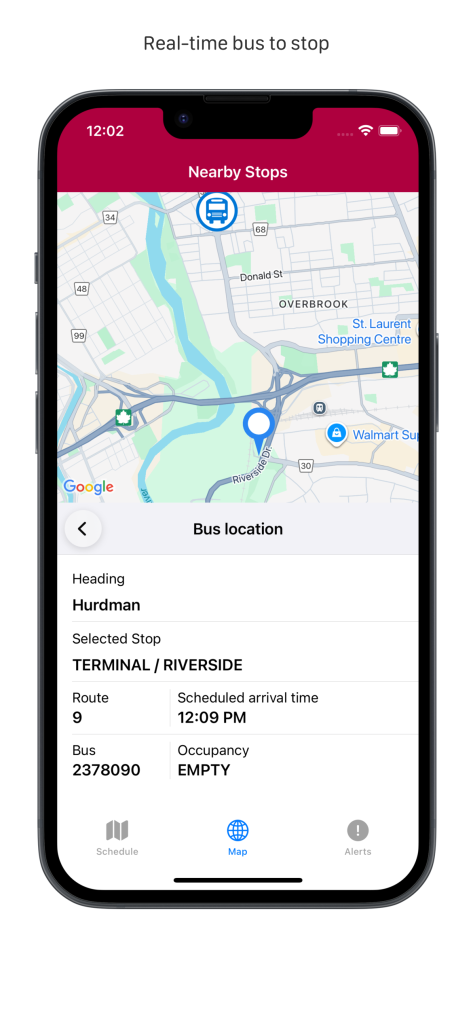
When a real-time vehicle position is selected. Map will zoom to include both bus and stop location. Additional information is displayed in the detail location.